
Mixing
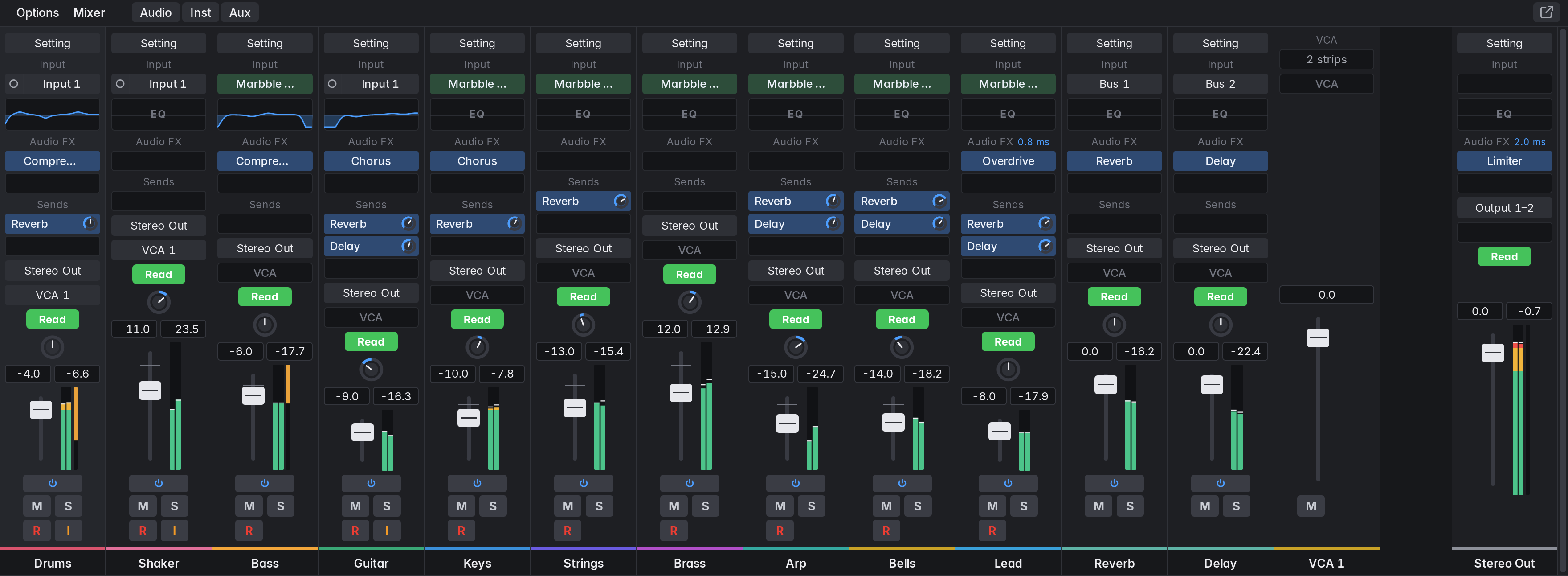
Open the Mixer with X. It shows a channel strip for every track (stacks included), then the auxes, then the VCA strips, then Stereo Out. The Audio, Inst and Aux buttons show or hide those strips; each has a light that is lit while its strips are shown. The Options menu has Create New VCA, New Aux, the same three filters, Show Hidden Tracks (hidden tracks appear only in hide mode) and Reset All Clip Indicators. The Inspector shows the selected track’s strip and Stereo Out.
The strips line up across the Mixer: each shows as many insert and send slots as the strip that needs the most (its plug-ins or sends plus an empty slot), up to 6 Audio FX rows and 4 Sends rows, so faders, meters, pan knobs and automation buttons sit on one line. A strip with more than that shows +2 more (for example) in its last row: click it for a menu of the plug-ins or sends that don’t fit, each with what its own slot offers (Open, Bypass and Remove for a plug-in), and to add another. The Inspector’s two strips line up with each other the same way. When the strips don’t fit, the Mixer scrolls sideways; the rest of the window stays as it is.
The Mixer opens tall enough for a whole strip with its fader. Made shorter, it keeps the faders first: the Audio FX and Sends sections show fewer rows (down to one each, sends first; the rest go behind +N more in the last row), and when even that doesn’t fit, the strips scroll up and down from the bottom, so the faders, meters and names stay in view and Setting and Input are scrolled up. The selected track’s strip has its name plate lit, with an accent line under the name.
In this section
Section titled “In this section”Marbble is released under the MIT licence.Source on GitHub.